
How to Integrate Selenium With CI/CD Pipelines (Jenkins & GitHub Actions)
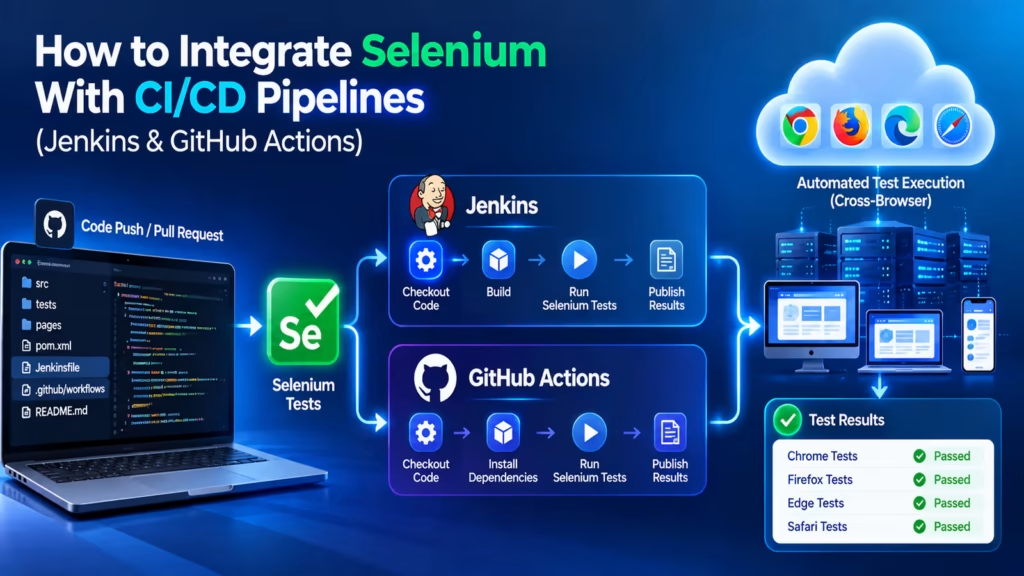
Running Selenium tests manually before each release is slow, error-prone, and incompatible with modern software delivery. Integrating Selenium with CI/CD pipelines solves this by triggering automated test suites on every code push or pull request, giving teams immediate feedback without human intervention. This guide covers how to integrate Selenium with two of the most widely used CI/CD platforms — Jenkins and GitHub Actions — including configuration examples, common pitfalls, and practical recommendations for teams at different stages of automation maturity.
Why Selenium Needs to Run Inside a CI/CD Pipeline
Selenium is a browser automation framework. On its own, it has no mechanism to run automatically — someone has to trigger the tests. In a fast-moving development environment where code is merged multiple times a day, manual test execution creates a bottleneck that defeats the purpose of having automated tests at all.
CI/CD pipelines — continuous integration and continuous delivery workflows — solve this. They watch for code changes and automatically run defined jobs in response. When Selenium is integrated into a CI/CD pipeline, every commit, pull request, or merge automatically triggers the test suite. Failures are flagged immediately, before problematic code reaches production.
The two most common platforms for this integration are Jenkins, a self-hosted automation server, and GitHub Actions, a cloud-native workflow engine built directly into GitHub repositories. Both are capable, but they suit different team setups and priorities.
Prerequisites Before You Begin
Before integrating Selenium with CI/CD pipelines, the following must already be in place:
- An operational Selenium automation suite developed with a supported programming language such as Java, Python, C#, or JavaScript.
- Tests structured using a test framework such as TestNG, JUnit, pytest, or Mocha.
- A build tool configured — Maven or Gradle for Java, pip for Python, npm for JavaScript.
- ChromeDriver or GeckoDriver available, compatible with the browser version used in the test environment.
- The repository hosted on GitHub, GitLab, or Bitbucket (for GitHub Actions, specifically GitHub).
Running tests in headless mode is strongly recommended for CI environments. Headless Chrome and headless Firefox operate without a display server, which matters on Linux build agents where no graphical interface is available. Configure this in your WebDriver options before pushing tests into any pipeline.
Integrating Selenium With Jenkins
Jenkins is a popular continuous integration platform used across many enterprise development environments. It is open-source, extensible through plugins, and can be configured to run Selenium tests on virtually any schedule or trigger.
The integration works through a Jenkinsfile — a pipeline-as-code configuration file stored in the root of your repository. A basic Jenkinsfile for a Java/Maven Selenium project looks like this:
pipeline {
  agent any
  stages {
    stage('Checkout') {
      steps { checkout scm }
    }
    stage('Run Selenium Tests') {
      steps {
        sh 'mvn clean test -Dheadless=true'
      }
    }
    stage('Publish Results') {
      steps {
        junit 'target/surefire-reports/*.xml'
      }
    }
  }
}
The Jenkins Pipeline plugin, which is installed by default in most Jenkins setups, reads this file and executes the stages in order. The junit step publishes test results to Jenkins’ built-in reporting interface, making failures immediately visible on the build dashboard.
For browser availability on Jenkins agents, you have two options: install Chrome or Firefox directly on the agent machine, or use Docker-based agents that include a pre-configured browser environment. Docker agents are far more portable and eliminate version conflicts between the browser and the driver.
Integrating Selenium With GitHub Actions
GitHub Actions is configured through YAML workflow files stored in the .github/workflows/ directory of your repository. When a push or pull request event occurs, GitHub automatically reads the relevant workflow file and executes it on hosted runners.
A workflow file for running Selenium tests with Python and pytest looks like this:
name: Selenium Test Suite

on:
  push:
    branches: [main, develop]
  pull_request:
    branches: [main]

jobs:
  test:
    runs-on: ubuntu-latest
    steps:
      - uses: actions/checkout@v4
      - name: Set up Python
        uses: actions/setup-python@v5
        with:
          python-version: '3.12'
      - name: Install dependencies
        run: pip install -r requirements.txt
      - name: Install Chrome
        run: |
          sudo apt-get update
          sudo apt-get install -y google-chrome-stable
      - name: Run Selenium tests
        run: pytest tests/ --headless
GitHub’s ubuntu-latest runners include Chrome pre-installed in many configurations, but explicitly installing it ensures version consistency. The --headless flag (or equivalent in your test configuration) is essential — GitHub Actions runners have no display server.
Jenkins vs GitHub Actions for Selenium Testing
| Factor | Jenkins | GitHub Actions |
|---|---|---|
| Hosting | Self-hosted (on your infrastructure) | Cloud-hosted by GitHub |
| Setup effort | Higher — requires server installation and maintenance | Low — defined in YAML files in the repo |
| Cost | Infrastructure costs apply | Free for public repos; usage-based for private |
| Customization | Very high via plugin ecosystem | High via marketplace actions |
| Best for | Enterprise teams with complex, multi-stage pipelines | Teams already using GitHub wanting fast setup |
Managing Browser Drivers in CI Environments
One of the most common failure points when integrating Selenium with CI/CD pipelines is a version mismatch between ChromeDriver and the installed version of Chrome. CI environments update independently from local developer machines, and a driver version that works locally will fail on a CI agent running a different Chrome version.
The cleanest solution is Selenium Manager, which was introduced in Selenium 4.6. Selenium Manager automatically downloads the correct driver version for the detected browser, eliminating manual driver management entirely. If you are still on an older Selenium version, the WebDriverManager library (for Java) or the webdriver-manager package (for Python) provides the same capability.
Using Docker-based runners with a fixed browser image — such as selenium/standalone-chrome from the official Selenium Docker registry — gives complete control over the browser version and eliminates environment inconsistency across agents.
Parallel Test Execution in Pipelines
As test suites grow, sequential execution becomes a bottleneck. A suite with 500 tests running sequentially may take 30 to 60 minutes. Running those tests in parallel across multiple browser instances or agents brings that time down significantly.
In GitHub Actions, parallel execution is handled through matrix strategies. You can define a matrix of browser configurations, test partitions, or environments, and GitHub Actions will spin up separate runners for each combination simultaneously. In Jenkins, the Parallel stages block in a Declarative Pipeline achieves the same effect.
Selenium Grid is the dedicated solution for large-scale parallel browser testing. Grid consists of a hub that receives test requests and nodes — each running one or more browsers — that execute the tests. Combining Selenium Grid with a CI/CD pipeline gives teams the ability to run hundreds of tests across multiple browsers and operating systems in the time it would take to run a single browser sequentially.
Test Reporting and Failure Notifications
A CI/CD integration is only valuable if the team can see and respond to test results quickly. Jenkins integrates with the JUnit and Allure plugins to produce rich test reports with pass/fail statistics, execution timelines, and failure screenshots. These reports persist on the build history page and are accessible without reading raw log files.
GitHub Actions integrates with tools like Allure Report, Playwright Trace Viewer, and third-party reporting services through marketplace actions. Failure notifications can be sent automatically to Slack, Microsoft Teams, or email using built-in notification steps or webhook integrations. Configuring notifications to trigger only on failure — not on every successful run — keeps alert fatigue under control and makes failures immediately noticeable.
Common Mistakes to Avoid
Teams new to integrating Selenium with CI/CD pipelines tend to run into the same set of problems:
- Not running in headless mode — Tests fail on Linux agents with no display. Always configure headless browser options before pushing to CI.
- Hardcoded wait times — Fixed Thread.sleep() or time.sleep() calls that work locally often fail on slower CI agents. Use WebDriverWait with expected conditions instead.
- Missing environment variables — Base URLs, credentials, or feature flags defined locally but not in CI configuration cause failures that are difficult to trace. Store these as CI secrets or environment variables.
- Driver path hardcoding — Absolute paths to ChromeDriver that exist on developer machines do not exist on CI agents. Use Selenium Manager or WebDriverManager to resolve this.
- Insufficient timeout configuration — CI environments can be slower than local machines, particularly during page load. Increase implicit and explicit wait timeouts to account for this.
Best Practices for Stable Pipeline Integration
Beyond fixing common errors, a few practices make CI-integrated Selenium suites significantly more reliable over time. Tag or categorize tests by type — smoke, regression, integration — and configure the pipeline to run fast smoke tests on every push while full regression runs happen only on pull requests or nightly. This keeps the feedback loop tight without making every commit wait for a 45-minute test run.
Store test artifacts — screenshots, videos, and HTML reports — as build artifacts in Jenkins or as GitHub Actions artifacts. When a test fails in CI that passes locally, artifact screenshots are often the only way to understand what the browser actually rendered. Without them, debugging remote failures is largely guesswork.
Start Your Data Analytics Career Today
Join WhaleCourseTechnologies for affordable training with hands-on projects and placement support.
Conclusion
Integrating Selenium with CI/CD pipelines transforms automated tests from a developer-side convenience into a genuine quality gate. Whether you choose Jenkins for its depth and enterprise plugin ecosystem or GitHub Actions for its ease of setup and GitHub-native workflow, the core integration pattern is the same: trigger tests automatically on code changes, run them in headless mode on clean environments, capture artifacts on failure, and report results where the team can see them immediately.
The common failure points — driver version mismatches, hardcoded waits, missing environment configuration — are all solvable with the right setup. Once the pipeline is running reliably, the discipline of addressing failures before merging code becomes automatic. That is when CI-integrated Selenium testing genuinely delivers on its promise: catching defects early, consistently, and without manual effort.
In This Article
Enroll in Our IT Courses
Master IT Program at whalecoursetechnologies
- Expert Mentorship from IT Professionals
- Job-Ready Skills with Live Projects
- Career Boost Add-on Modules
- 100% Placement & Interview Support
